ChemShell Workflow Configuration
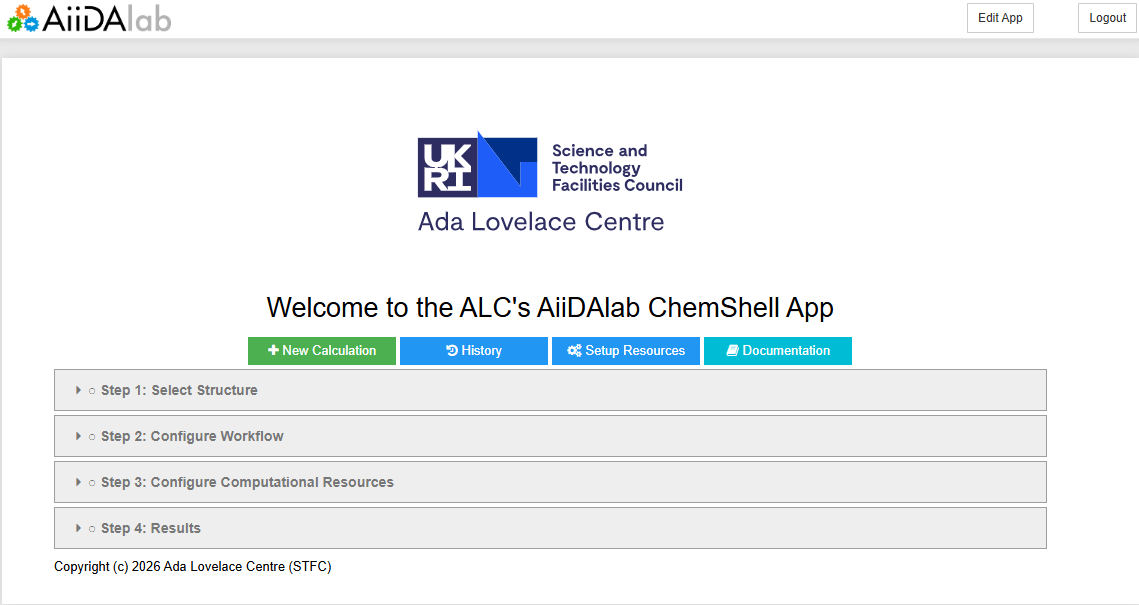
This is the main page for the AiiDAlab ChemShell plugin and allows users to configure and submit ChemShell based computational calculations and view a summary of key results. The page consists of a header with the same navigational components as the start banner and a wizard style configuration menu enabling step-by-step configuration of complex computational workflows which will utilise ChemShell’s multiscale modelling capabilities.
Configuration Wizard
The primary component of this page is the configuration wizard which itself is broken down into several steps each of which is required to submit the complete workflow. Each step contains input fields which the user can interact with to configure the workflow alongside a submit button which will lock-in the user’s choices submitting them to the underlying AiiDA engine which will communicate and manage the ChemShell process.
Structure Input
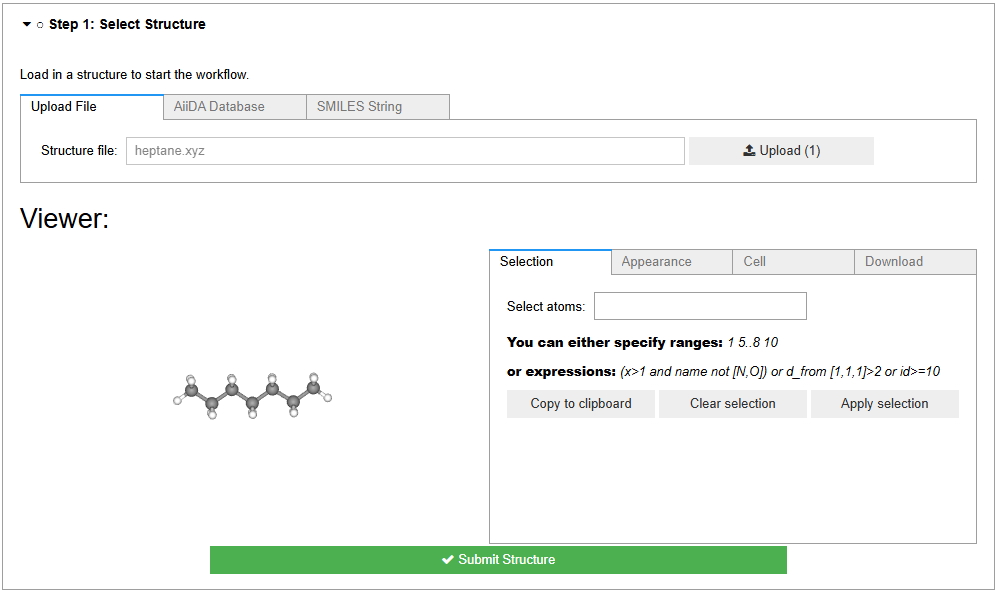
This is the first step and often the foundation of any workflow based on chemical modelling. It provides several options for uploading a chemical structure to the workflow as different tabs within the UI. The currently supported options are; uploading a structure file (i.e. a .xyz chemical structure file), SMILES string input (generate a generic 3D structure from a SMILES string) and a database search option which enables the inclusion of structures already present in the AiiDA database either from previous calculations, other plugins or that have been included via the AiiDA command line interface (CLI).
These input tabs are then followed by a visualisation box which allows the user to dynamically visualise the structure they have uploaded (if it is in a supported format). This box includes different visualisation options including options such as whether to render the structure as ball-and-stick, vdw or stick representations for example. It also exposes editing features, however, these are not fully supported by the AiiDAlab interface. Therefore, whilst users can use the editing features, to include the updated structure within the workflow configuration the user will need to save the updated structure as a new structure file and upload this new structure file via the Upload Structure tab.
Whilst the physical creation/drawing of chemical structures is not directly supported within the AiiDAlab ChemShell UI, there are many online applications which allow the drawing of chemical structures and outputting them to .xyz files (or as a SMILES string) which can then be imported into the workflow via the Upload Structure tab. Examples include:
list
of
exmples
Workflow Setup
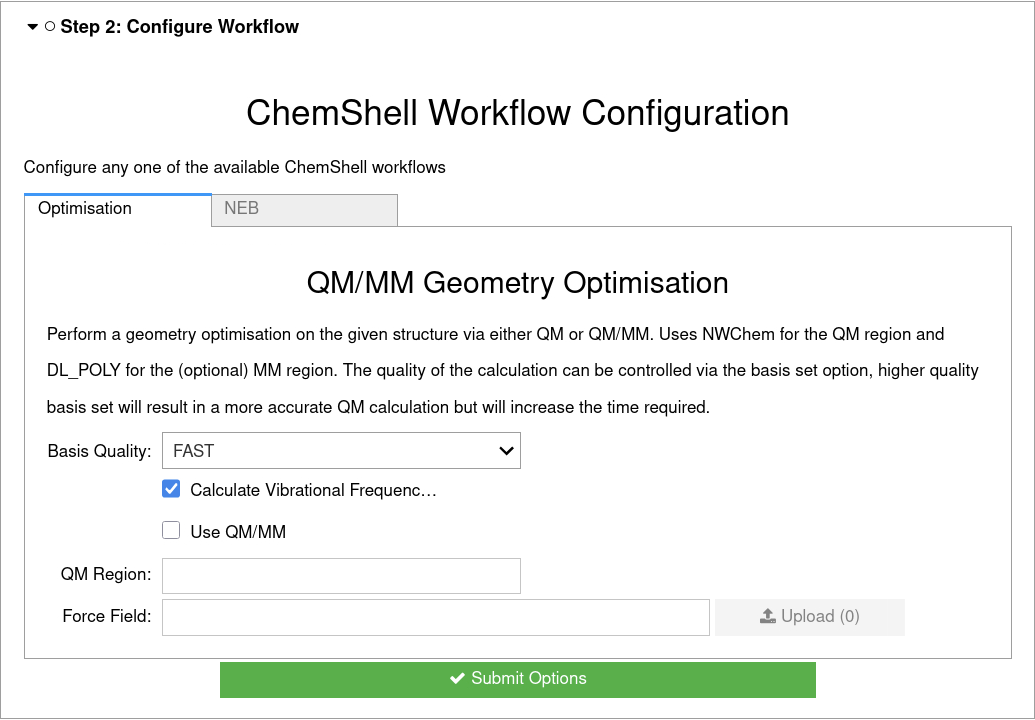
This is the core step in configuring the different available workflows within the AiiDAlab ChemShell plugin. It provides different tabs for each of the available workflows (see Available Workflow Configurations) each providing a tailored UI with various input fields for the different components of the workflow setup. Typically these will be pre-filled with sensible default values to quickly setup a reasonable configuration for the given workflow but can then be altered by the user to further tailor the workflow to suite their specific needs.
Resource Setup
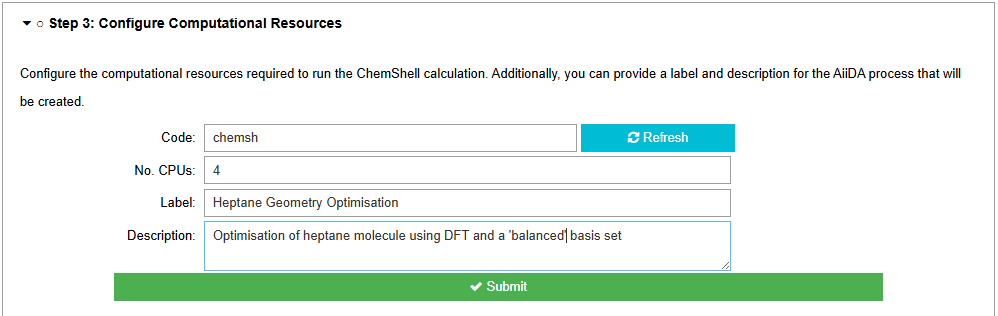
This step enables the user to define where and how the underlying ChemShell software will run. The core inputs are the AiiDA code instance which tells the AiiDA engine where the ChemShell executable exists and how to communicate with it (more information on AiiDA code instances is given in Resource Management), and the number of CPU cores to provide for the ChemShell calculation.
In addition to these inputs it also provides inputs for a label and description field which will be associated with the created AiiDA process for improved future reference, see Calculation History for more information on how these values are useful.
Job Monitor & Results
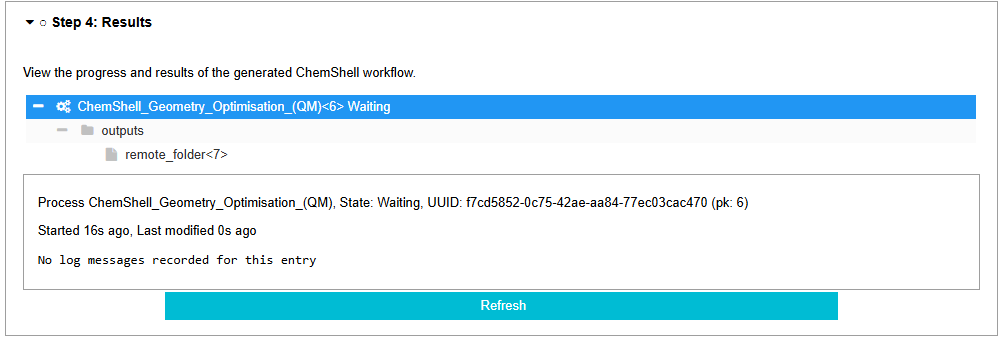
The final step for the wizard is a combined job monitor and results viewer. This UI component is only available once all previous stages have been completed and a workflow has been successfully submitted. Once submitted it will appear in the UI with a key depicting what its status is; created, finished, *excepted etc. Initially processes are given the created status which means they have successfully been submitted to the AiiDA engine and are being carried out in the background. Once finished they will typically be given one of two status keys, if the process finished normally it will be labelled as finished. If if has failed for any reason it will generally be given the excepted key.
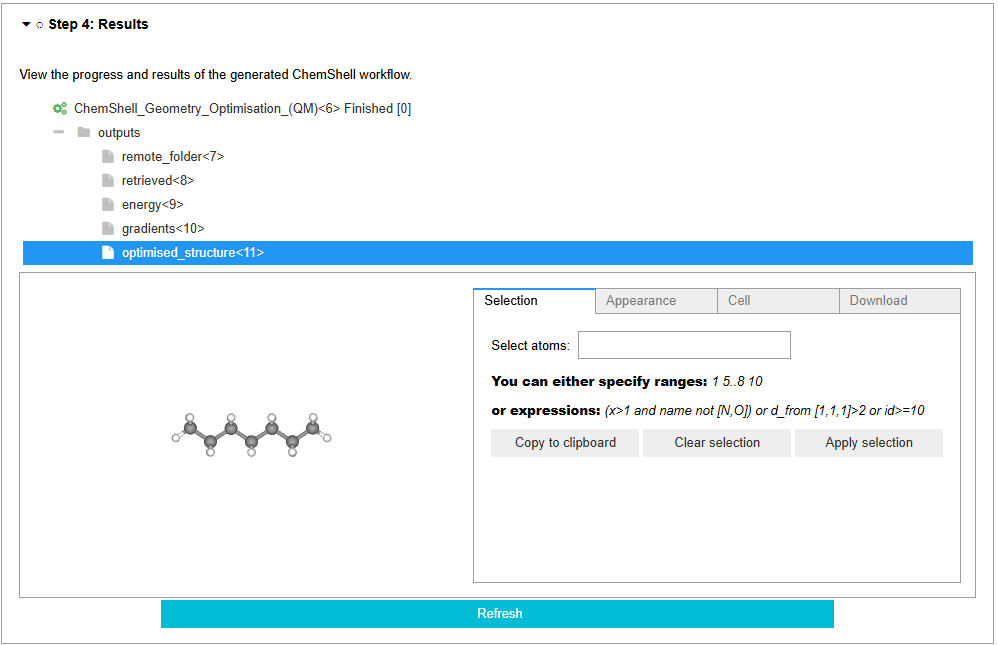
Once a process has finished its associated results objects will be listed in the displayed access tree under outputs. This may require a refresh to be properly updated which can be carried out via the refresh button at the bottom of the UI. Each of the listed results can then be clicked on and visualised in the display either as references to their AiiDA database object or as a more detailed viewer if one is supported for the data type.
Note
Energies outputted by ChemShell are typically in atomic units (Hartree). Common conversions are:
1 Hartree
27.211386 eV
2625.50 kJ/mol
627.509 kcal/mol
2.194746 wavenumbers
4.359745x10⁻¹⁸ Joules
Available Workflow Configurations
All the currently available workflow methods are described here. More workflows are always being developed and added. If there are any that you would like to see within this plugin get in touch via the GitHub page.
Geometry Optimisation
This is the default base workflow provided with the AiiDAlab ChemShell plugin, it represents a geometry optimisation calculation with optional additional steps such as the evaluation of vibrational frequencies of the optimised structure. It can be configured for both QM, MM or QM/MM based methods with sensibly chosen default parameters. The quality of the DFT portion of the calculation can be tuned with the Basis Quality option, however this creates a trade-off with the time required for the calculations.
The MM components of the workflow can be enabled by checking the Use QM/MM box which will enable the remaining input fields. When using MM within a calculation the user must provide a pre-configured force field in the required DL_POLY format, which needs to be provided in the Force Field: input section. Additionally, the user needs to specify which atoms to apply the QM theory portion of a QM/MM calculation method to, which can be provided as a comma separated list in the QM Region: input section.
Most of the other available workflows share these same QM and QM/MM configuration options (Basis Quality, Use QM/MM, Force Field: and QM Region:), which behave as described above. Where a workflow supports the Show Advanced Options checkbox, enabling it replaces the simplified Basis Quality dropdown with direct control over the QM Backend, Basis Set and Functional used for the quantum mechanical portion of the calculation.
Single Point Energy
This workflow performs a single point energy evaluation on the provided input structure, without altering its geometry. It supports both QM and QM/MM methods using the shared configuration options described above.
Two additional sets of options are provided which control what is calculated alongside the energy:
Energy Derivatives - the First Derivative and Second Derivative checkboxes request the gradients and Hessian of the energy respectively.
Vibrational Frequencies - when checked, a vibrational frequency calculation is performed on the input structure in place of a standard single point evaluation.
This workflow is also the basis of the batch processing page, where the same configuration is applied to every structure in a batch (see Batch Processing).
Isolated Atomic Energies
This workflow extracts every unique atom type (element) present in the input structure and computes the isolated QM energy of each one individually. It is useful for reference calculations such as evaluating atomisation or cohesive energies, where the energies of the separated constituent atoms are required.
As the calculation operates on isolated single atoms it is a QM only workflow; the QM/MM, energy derivative and vibrational frequency options are therefore not applicable. Only the Basis Quality option (or the QM Backend, Basis Set and Functional under Show Advanced Options) needs to be configured.
Note
Not all QM backends supported by ChemShell are able to take single atoms as an input. It is recommended the user stick to the default “NWChem” backend for any workflows that require atomistic energies.
Nudged Elastic Band
This workflow performs a nudged elastic band (NEB) calculation to determine the minimum energy pathway between two structures, for example to locate a transition state connecting a set of reactants and products. The initial structure is provided in the usual Structure Input step, whilst the final structure is uploaded directly within the NEB tab itself using the embedded structure selection widget.
Beyond the second structure input, the NEB workflow uses the same shared QM and QM/MM configuration options described for the geometry optimisation workflow.
Note
A NEB calculation cannot be submitted until a valid second structure has been provided; the workflow will report an error if the final structure is missing.